Valid for the following references:
- GGM NVA321604MR
- GGM NVA320002MR
- GGM NVA320004MR
- GGM NVA160002R
- GGM NVA161602R
- GGM NVP2560016MR
- GGM NVP1280016MR
- GGM NVP640016MR
- GGM NVS160001D
- GGM NVS080801D
- GGM NVS040401D
- GGM NVI080801D
- GGM NVI040401D
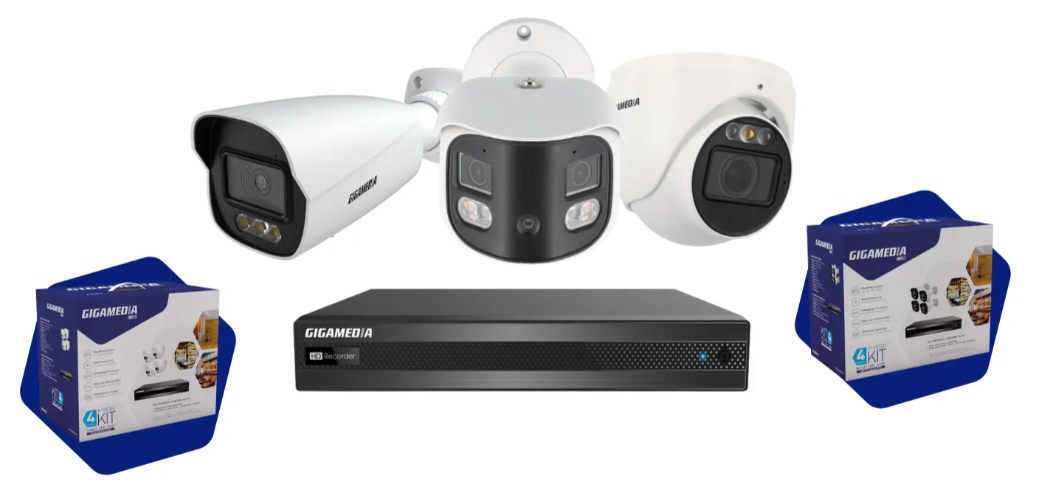
Via the GUI
1) Access the main menu
- Connect a monitor (HDMI or VGA) directly to the back of the recorder
- Plug a USB Mouse into the NVR
- Login with admin account (Menu bar at bottom left)
2) Open Camera Settings
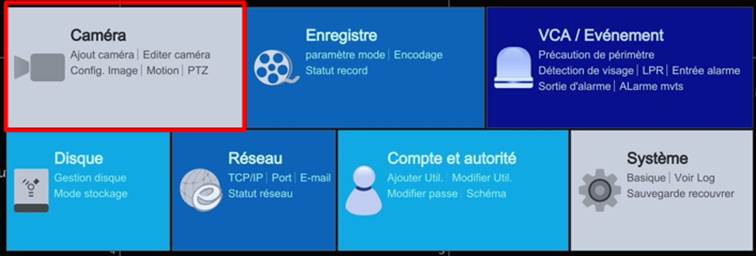
Menu → Camera → Image → Mask Settings
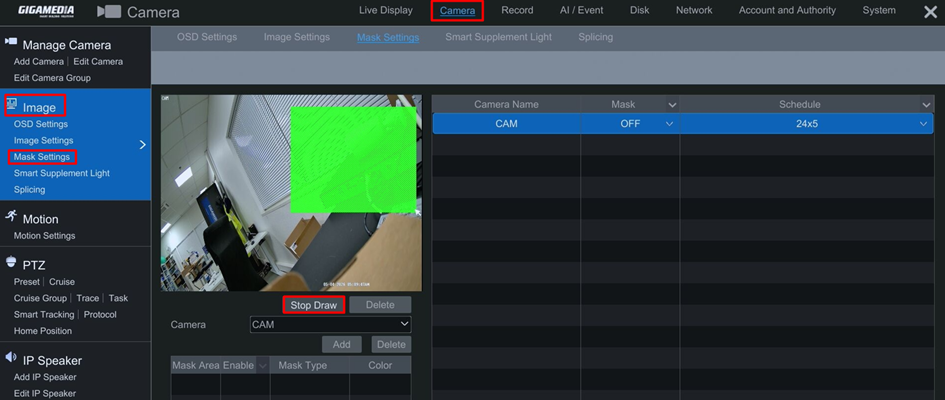
3) Enable Masking
- Click on the Draw button and draw the area directly in the image preview.
- Click Add .
Ability to change the color and temporarily disable the area.
Ability to add up to 4 zones per camera
The zones appear black and are immediately active.
They will be active:
- in Liveview
- In Playback
- For video Export
Was this article helpful?
That’s Great!
Thank you for your feedback
Sorry! We couldn't be helpful
Thank you for your feedback
Feedback sent
We appreciate your effort and will try to fix the article