Valid for the current range of GIGAMEDIA IP recorders *
This document explains how to change the username and password of Gigamedia devices. It also allows you to create new user accounts. this can only be done from the Administrator account.
Recorder interface
From the recorder's interface (screen connected via HDMI to the device), go to the bottom right and select "Configure".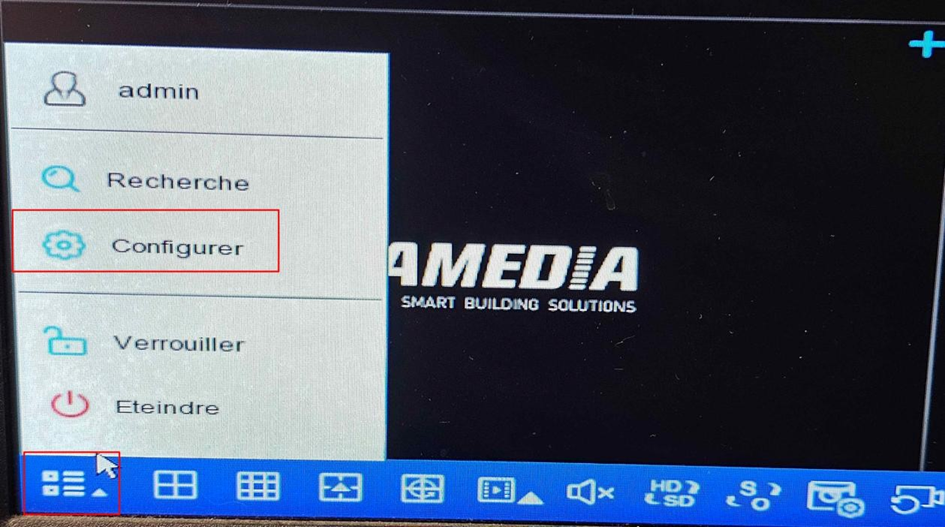
Then, go to "System" and click on "User".
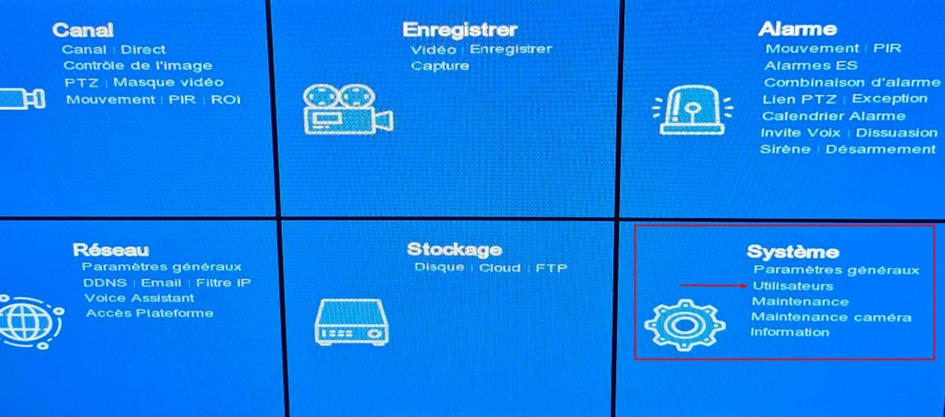
On the page, click on the leaf icon with a pencil to change the desired user.
A new page is opening; You will be able to modify:
- Username;
- the password (note: for the password to be accepted, the complexity must be in green — in general it must be at least 8 characters long, including an uppercase, a lowercase letter, a number and a special character);
- Enabling or disabling schema locking.
- The number of unique users allowed (the number of users/devices that can use this ID);
- the "Password / Confirm" box: by checking it, you apply the password of this account (administrator account only) to cameras already added.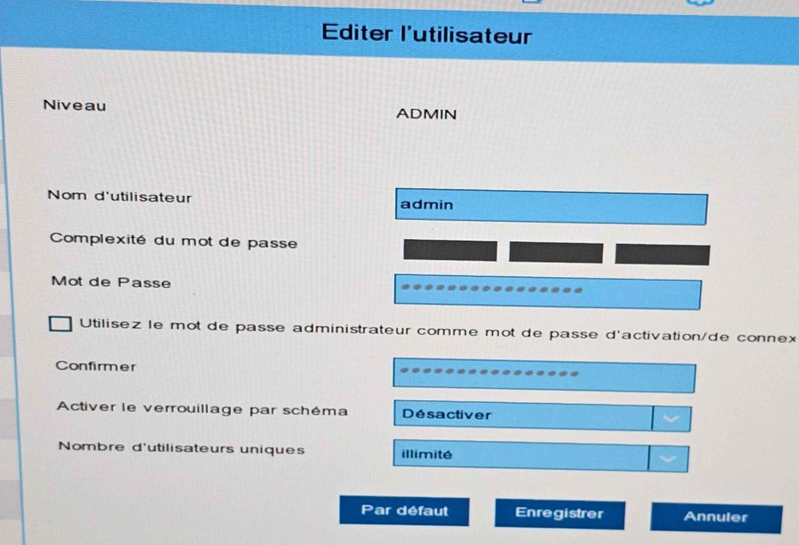
By clicking on the cogwheel in the "Permissions" column, you will access the user rights configuration.
The Administrator-level user has full rights and cannot be changed. This interface allows you to define who will have access to the different functions (parameterization, replay, etc.).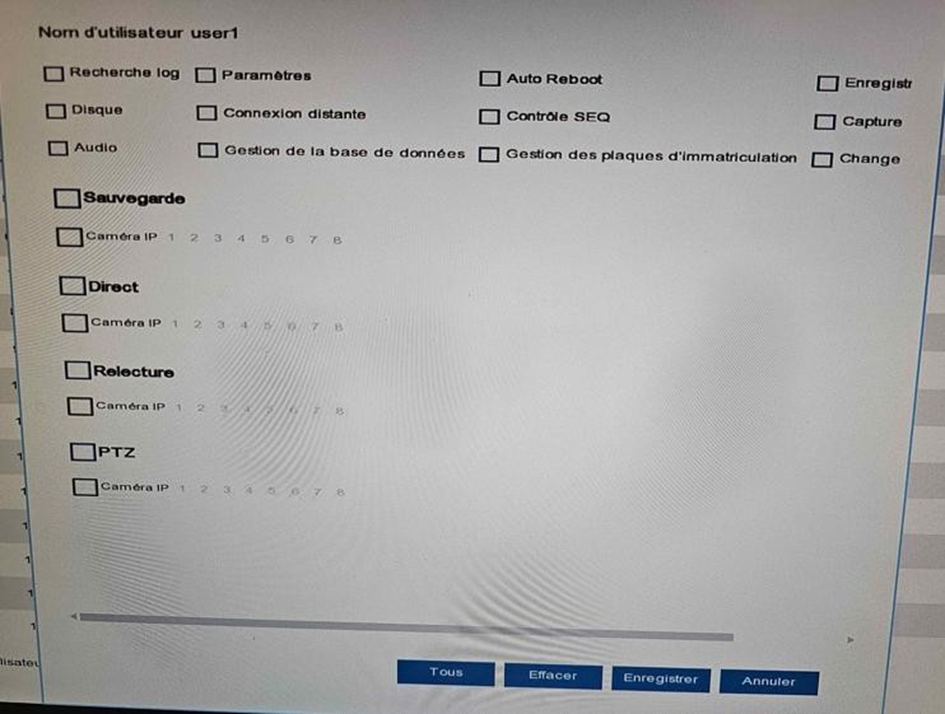
Web interface
From the web interface, you can change user IDs by going to Remote Settings → Multi-User → System.
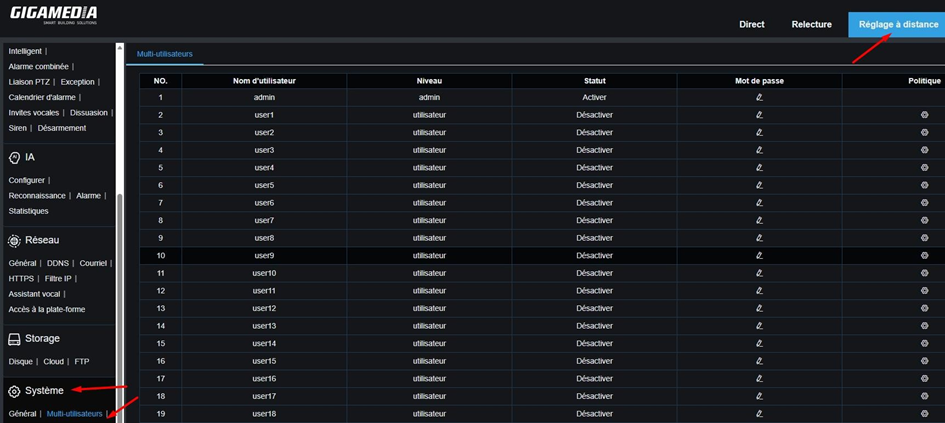
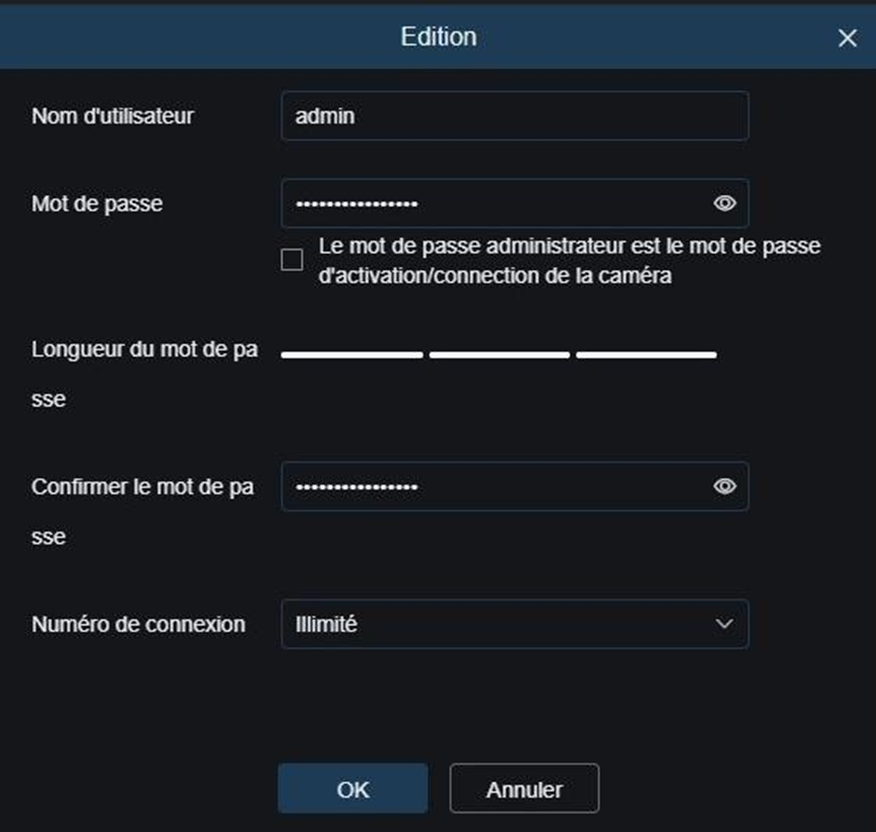
By clicking on the pencil icon in the "Password" column, a new page opens where you can edit:
- Username;
- the password (note: for the password to be accepted, its level of complexity must be in green — in general, it must be at least 8 characters including an uppercase, a lowercase, a number and a special character);
- The number of concurrent connections allowed (the number of users/devices that can use this ID);
- The checkbox after the Password field: By enabling it, you apply this password (manager account only) to cameras that have already been added.
Clicking on the cogwheel in the "Policy" column will take you to the user rights configuration.
The Administrator-level user has full rights and cannot be changed. This section allows you to define who will have access to the functions (parameterization, replay, etc.).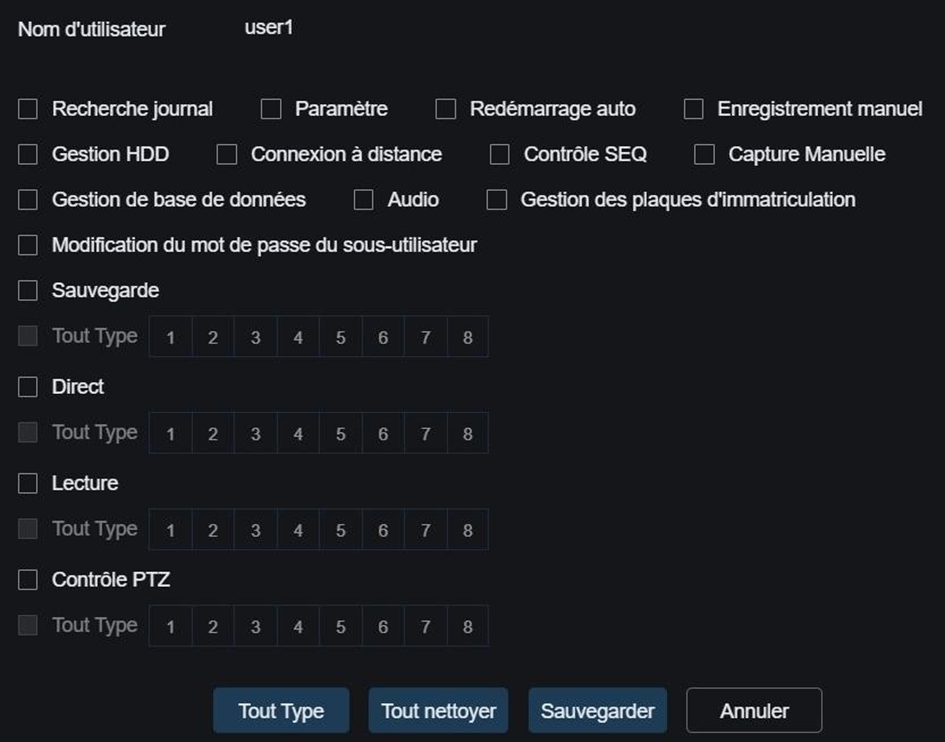
On the GGM View app (on phone), click on the icon in the top left, then go to "Remote Settings".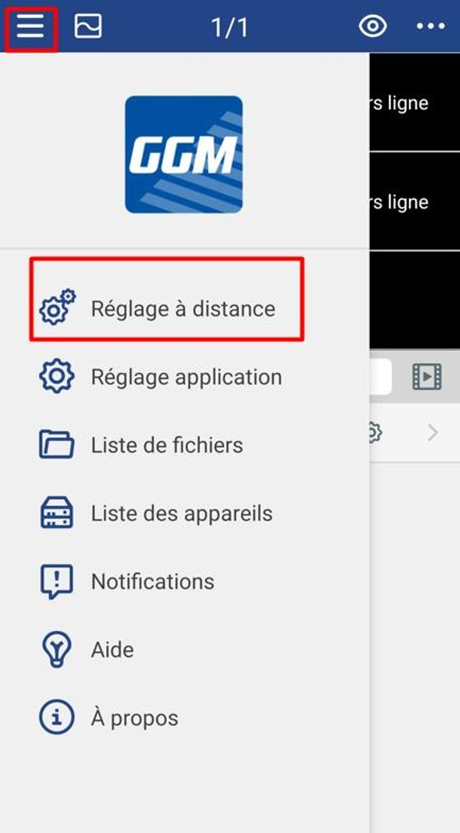
Once you've chosen the device, go to "System."
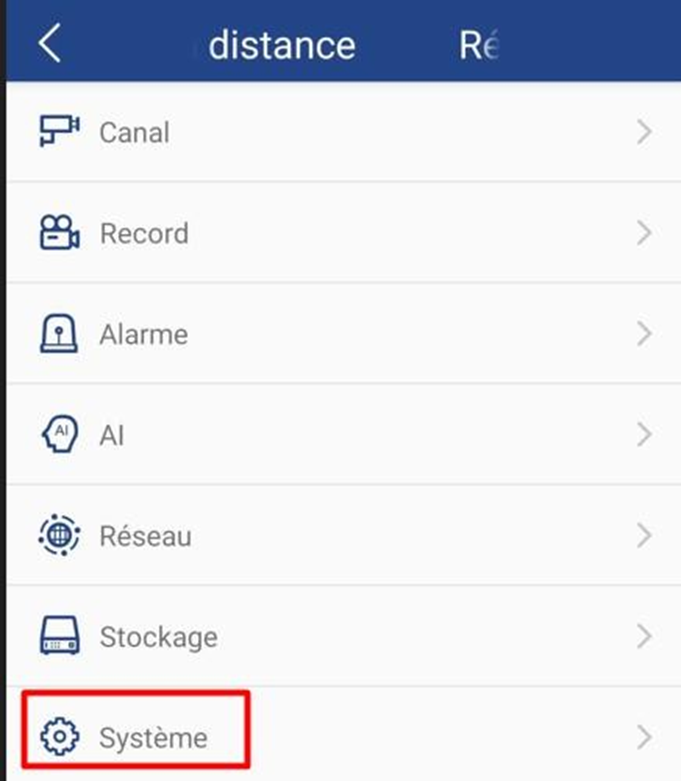
Then select "Account Management" to access the user configuration.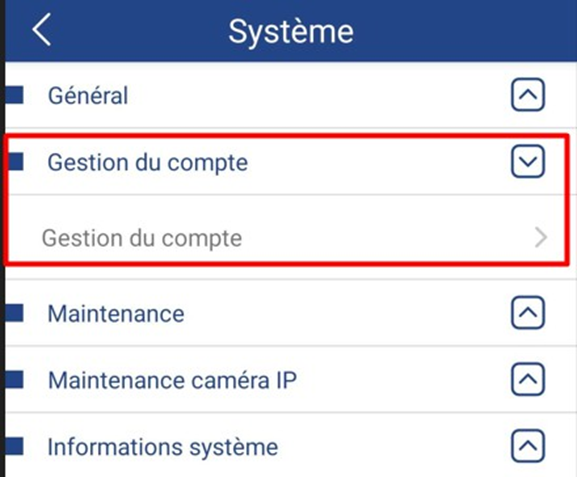
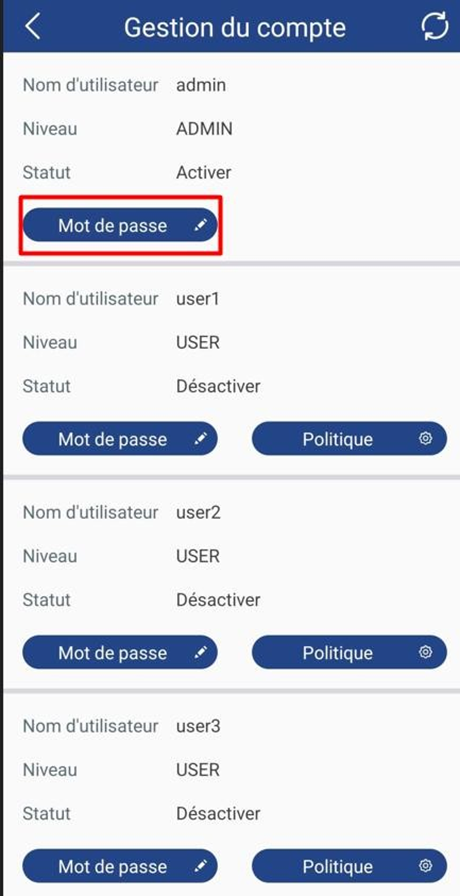
From this page, you can configure user profiles. Clicking on "Password" will take you to the login settings.
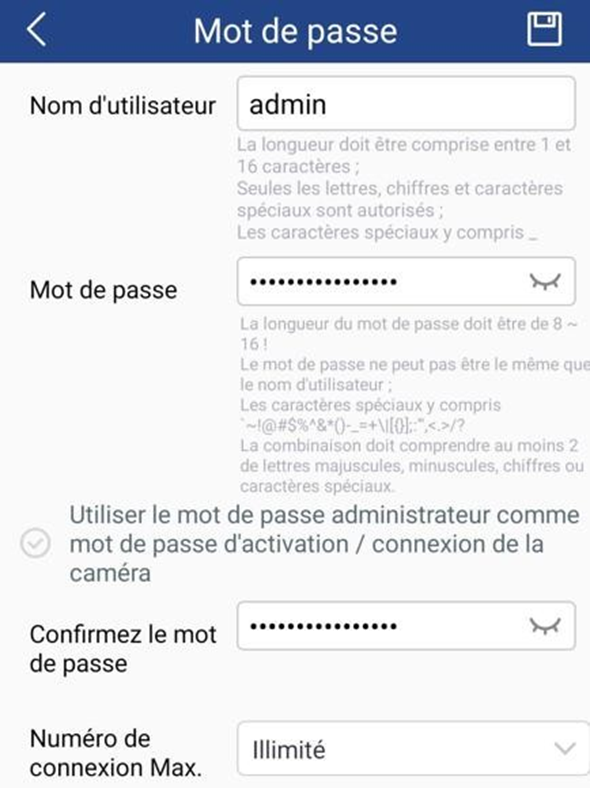
You will be able to edit the following:
- Username;
- the password (make sure to comply with the complexity rules for it to be accepted);
- The maximum number of concurrent connections: the number of users/devices that can use this ID;
- The checkbox to apply the password for this account (manager account only) to cameras that have already been added.
From the previous page, tap on "Policy." This allows you to define the rights granted to other users.
The Administrator account has full rights by default and cannot be changed.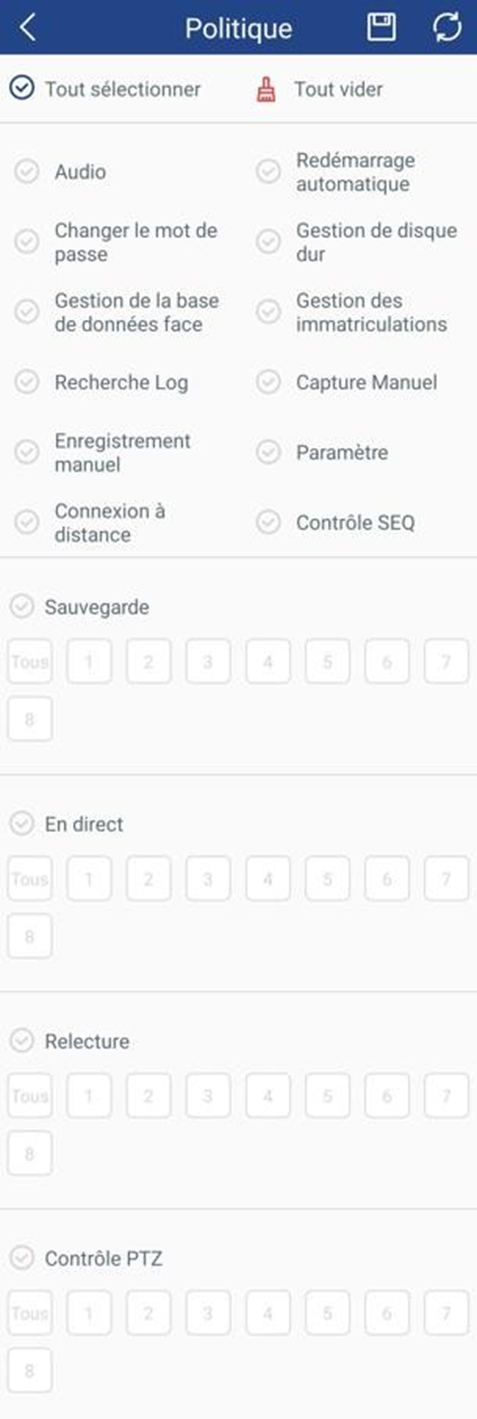
----------------------------------------------------
* Depending on the model and firmware version used :
GGM KITIP24C5MP
GGM KITIP24CD5MP
GGM KITIP48C5MP
GGM KITIP48CD5MP
GGM KITIP48C4MPA
GGM KITIP48CD4MPA
GGM KITIP48CDM5MP
GGM KITIP816C5MP
GGM KITIP816CDM5MP
GGM NVRL0104
GGM NVRL0104P
GGM NVRL0108P
GGM NVR0108PA
GGM NVR0208P
GGM NVR020808P
GGM NVR0216P
GGM NVR021608P
GGM NVR021616P
GGM NVR0232
GGM NVR023216P
GGM NVR0416
GGM NVR0432
GGM NVR043216P
GGM NVR0816
GGM NVR081616P
GGM NVR083216P
GGM NVR0832
GGM NVR16
GGM NVR32
GGM NVRE0104P
GGM NVRE0108P
Was this article helpful?
That’s Great!
Thank you for your feedback
Sorry! We couldn't be helpful
Thank you for your feedback
Feedback sent
We appreciate your effort and will try to fix the article