Using a UNIVIEW Wi-Fi camera only
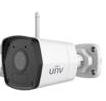
Reference example: IPC2122SR3F40WD
Step 1: Power on and initial connection
- Plug in the camera's power supply.
- Connect the RJ45 cable between your router and the camera.
Step 2: Identify the IP address
You can use one of the following apps:
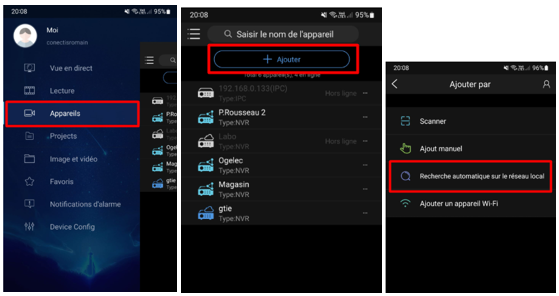
- EZView
- Open the Main Menu (top left).
- Select Devices, then click the + button.
- Run an automatic search on the local network.
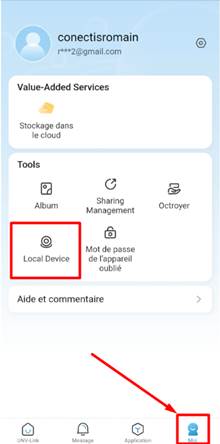
- UNV Link User
- Open the Me menu (bottom right).
- Select Local Device → Add Device → Auto Search.
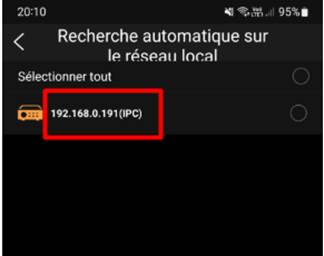
Example of an IP address detected: 192.168.0.191.
Step 3: Access via web browser
- Open a browser (Chrome, Edge, etc.).
- Enter the camera's IP address in the address bar.
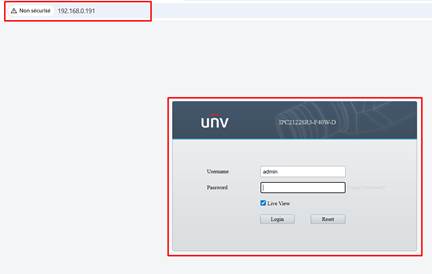
- Default identifiers:
- Username : admin
- Password : 123456
⚠️ Important: Change the password immediately to a strong and secure password.
- Old password: 123456
- New Password: Strong Password
The camera's video interface is displayed.
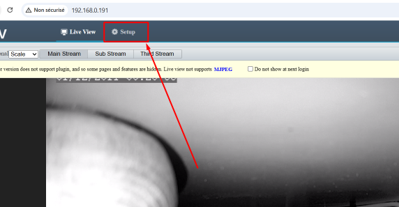
Step 4: Wi-Fi Connection
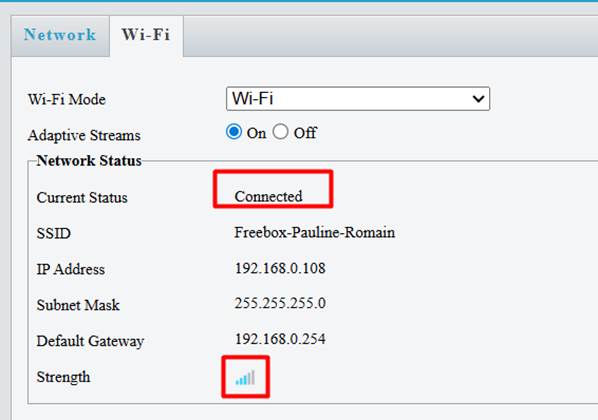
- Go to the Setup → Network menu → Wi-Fi tab.
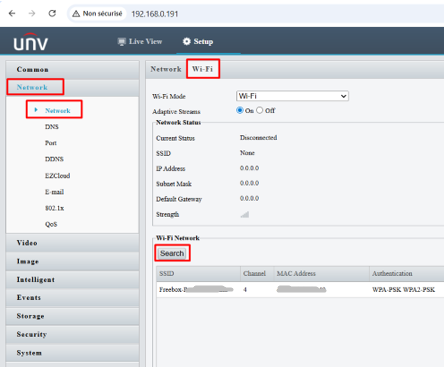
- Click on Search and select the name of your box (example: Freebox AZ24B).
- Enter the Wi-Fi key and click Save.
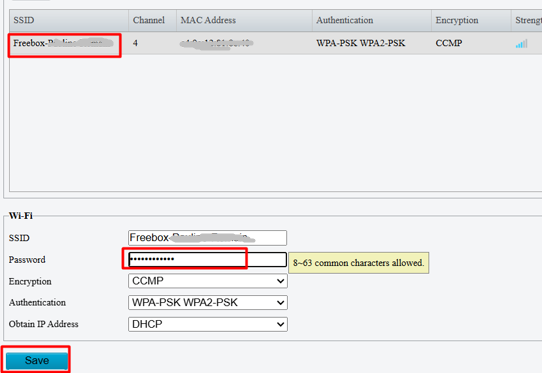
- Attendez l’indication Connected.
Then:
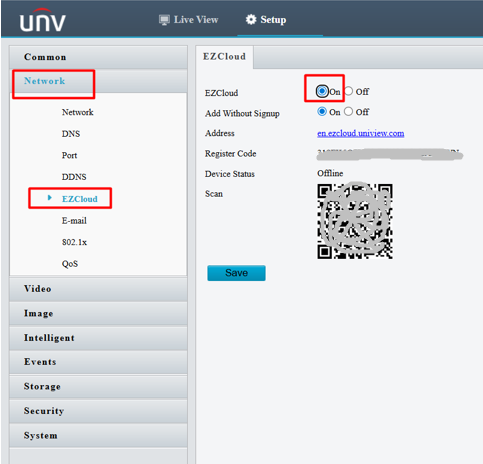
- Go to Network → EZCloud.
- Enable EZCloud → ON and then save.
- Leave the QR Code displayed on the screen.
Step 5: Adding the camera in the app
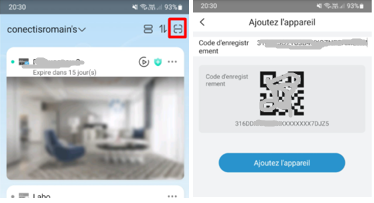
- In the UNV Link User app, open the menu (top right).
- Select Scan QR Code.
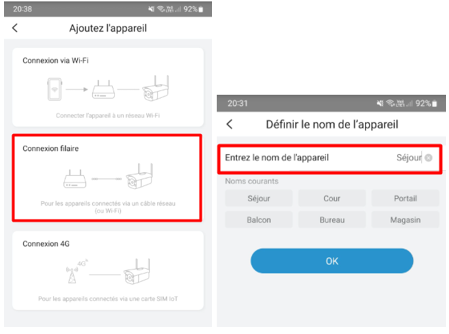
- Add the device, choose Wired Connection, and then enter a name for the camera.
- Wait and refresh the app.
A green dot next to the camera's name confirms that it's online.
? You can now unplug the RJ45 cable and check that Wi-Fi is working properly.
Step 6: SD Card (Optional)
If you are using an SD card, make sure that it is properly inserted and formatted before use.
Was this article helpful?
That’s Great!
Thank you for your feedback
Sorry! We couldn't be helpful
Thank you for your feedback
Feedback sent
We appreciate your effort and will try to fix the article