To change the IP address of the control panel from its web interface, you must access its menu via "Site Configuration", then click on "AXCDIPEVO control panel", and finally select "Fixed IP address".
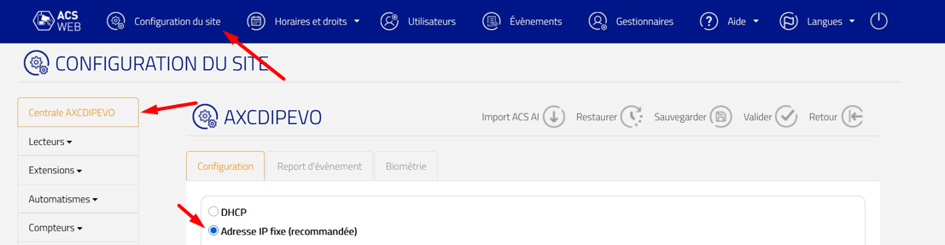
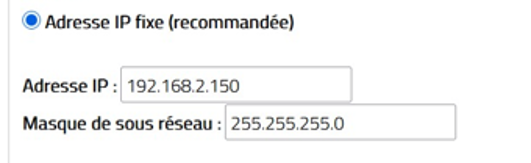
From there, you will be able to change the IP address and subnet mask of your hub.
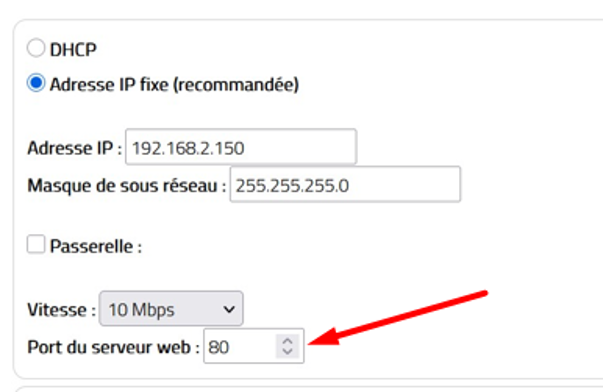
However, also be sure to change the "web server port" to 80. By default, it sets to 1; if you do not change it, the URL address of the control panel will become "http://adresseIP:port/" instead of "http://adresseIP", for example: http://192.168.2.150:1
Special case
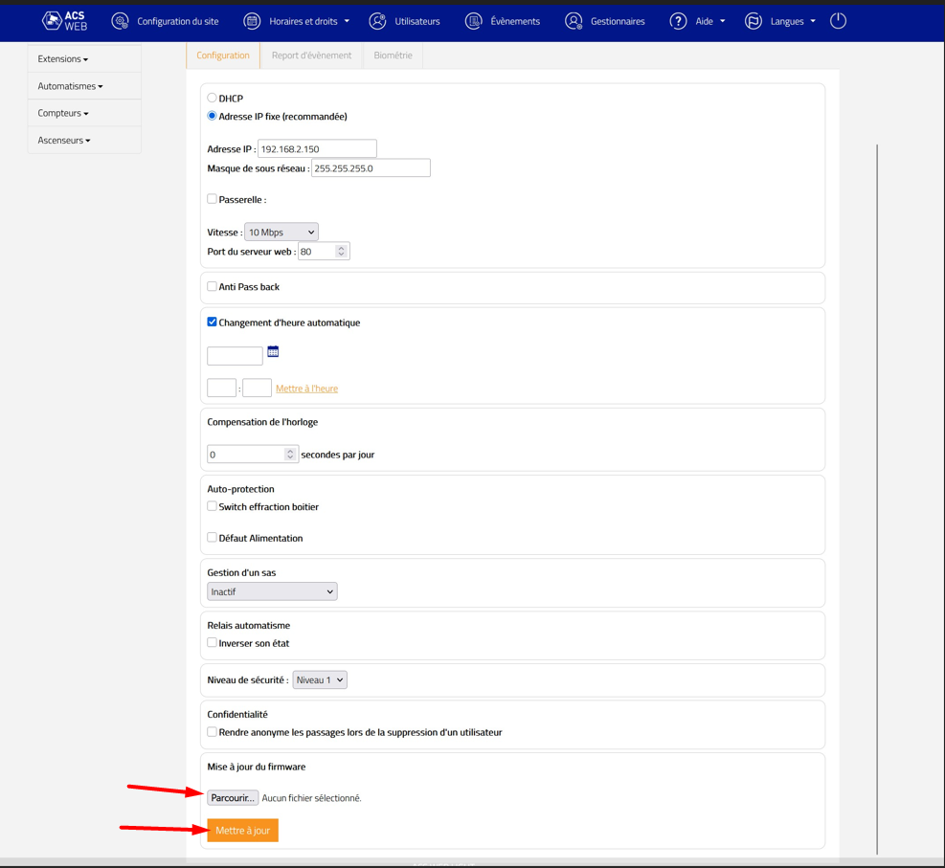
It can happen that, in some cases, after changing the IP address of the control panel, it is no longer accessible via its web interface. In this case, you will need to reset and then update the device.
You will therefore need:
- Download and unzip the "AXCDIPEVO_ACS_WEB_V4.5 1" file attached to this page.
- From the ACS web interface, click on "Browse", then select the file "ACXDIPEVO_ACS_WEB_V4.5.VBN" and start the update
Was this article helpful?
That’s Great!
Thank you for your feedback
Sorry! We couldn't be helpful
Thank you for your feedback
Feedback sent
We appreciate your effort and will try to fix the article