Valid for those references :
- GGM GS20016G2S
- GGM GS20024G2S
- GGM GS20024P2S
- GGM GS20048G4S
- GGM GS20048P4S
- GGM GS2008G2S
- GGM GS2008P2S
By default, the IP address of the device is 192.168.2.1. To access the switch interface, you must therefore change the IP address of your computer (be careful, the computer must be on the same network as the switch).
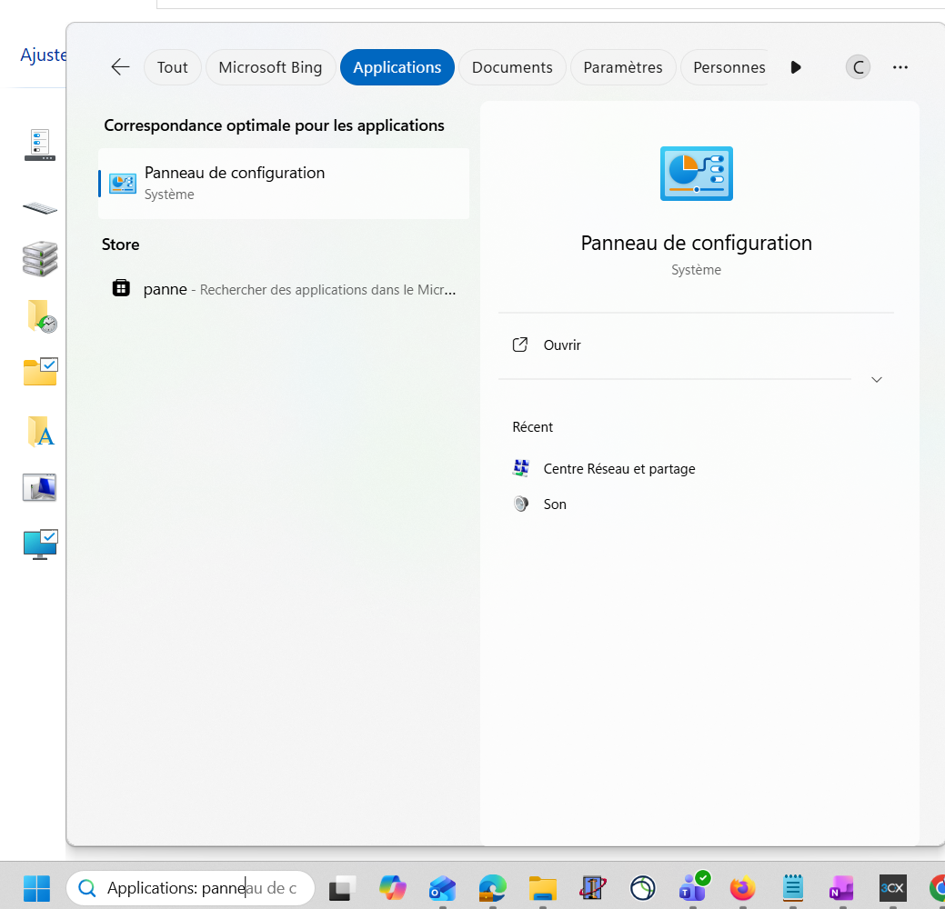
To get started, go to the Windows search bar and type "Panel " to open the Control Panel.
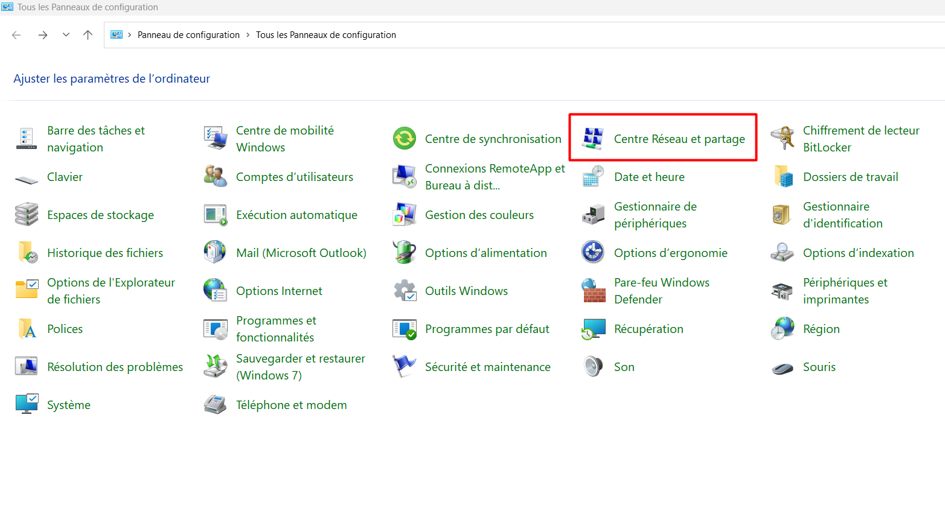
Once in the Control Panel, click on "Network and Sharing Center." On some versions of Windows, you must first go to "Network and Internet" before finding the Network and Sharing Center.
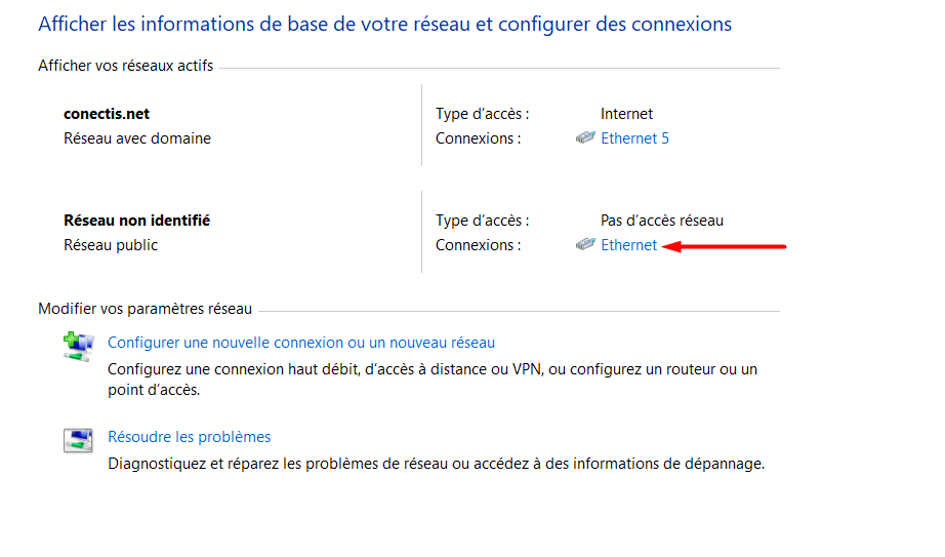
On this page, click the link for the network your switch is connected to.
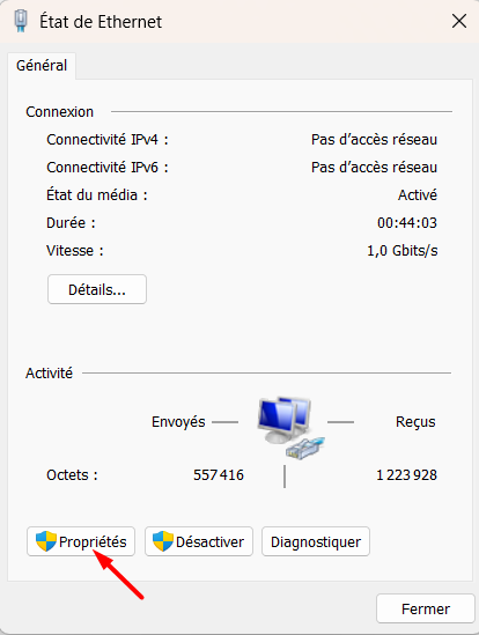
Now click on "Properties".
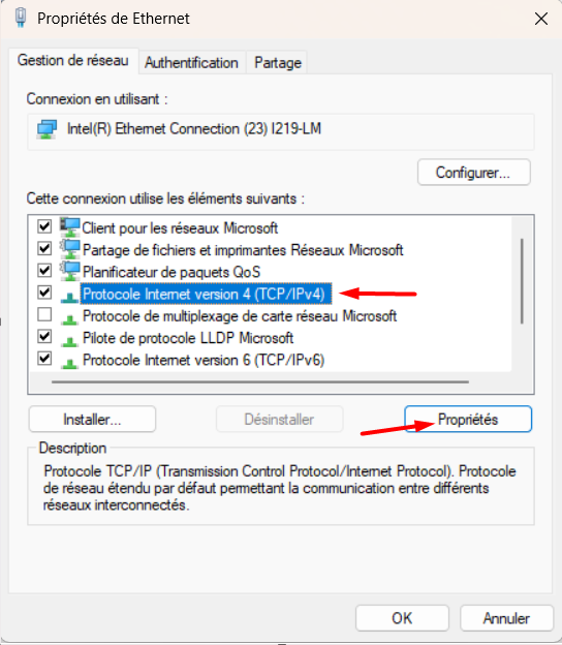
Then click on "Internet Protocol version 4 (TCP/IPv4)", then on "Properties".
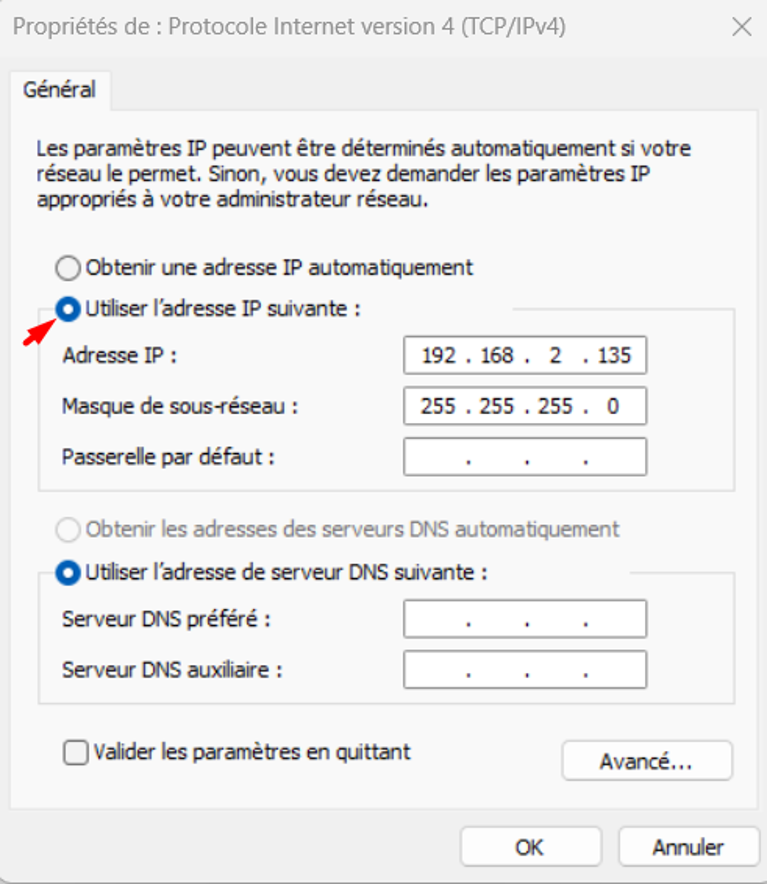
Then select "Use the following IP address:" and enter an IP address similar to the one on the switch (192.168.2.xx, where xx is a number between 2 and 253). Then click on the "Subnet Mask" bar; it will fill in automatically. Check the "Validate settings on exit" box, then click "OK".
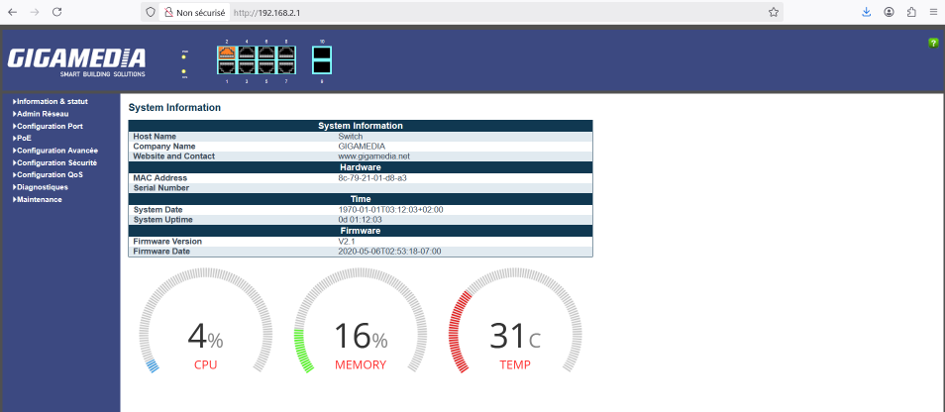
Finally, open a browser and enter the switch's IP address. By default, the username is "admin" and the password is "system". Validate to access the switch's web interface
Was this article helpful?
That’s Great!
Thank you for your feedback
Sorry! We couldn't be helpful
Thank you for your feedback
Feedback sent
We appreciate your effort and will try to fix the article