Valid for the current range of GIGAMEDIA IP recorders *
First time adding the device
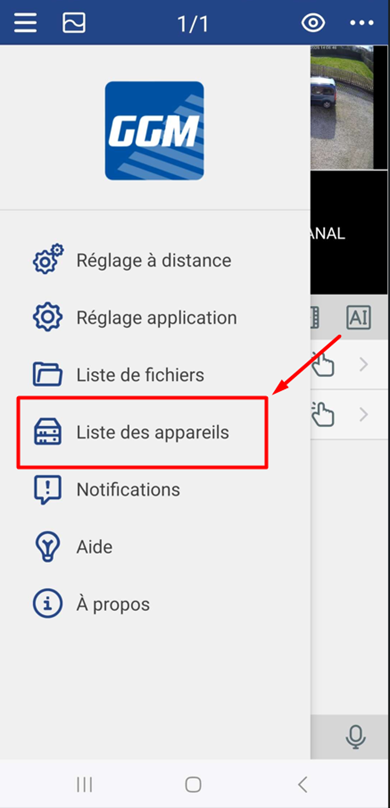
For initial setup of a device from the app, go to the "Device list" tab.
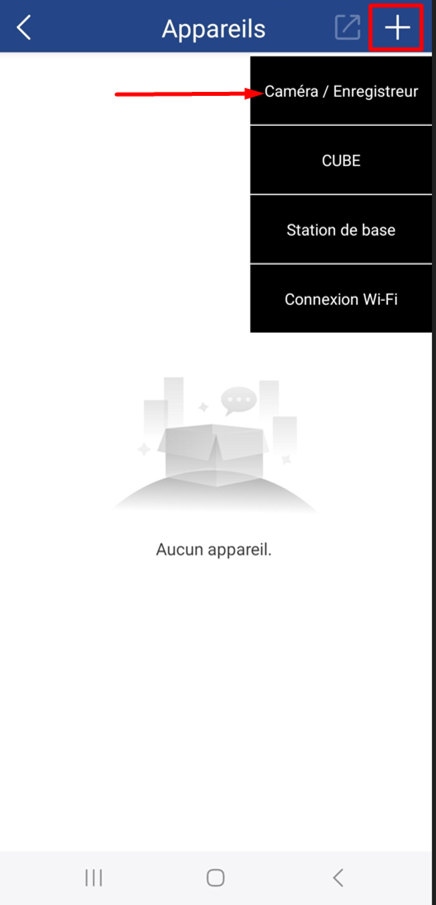
Then press the cross at the top right and select "Camera / Recorder".
Once the QR code is scanned, the app will display a new page with the IP address/ID, the port, and the username already filled in. You will only need to add the recorder's default password: admin123.
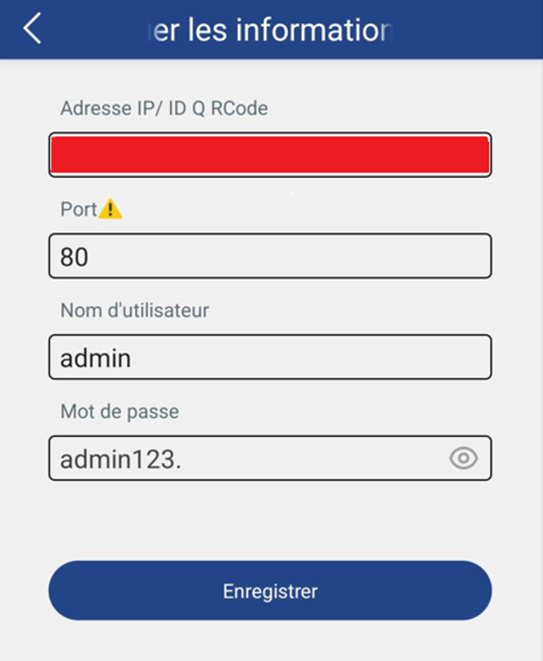
(Ps: the warning icon next to the port is not an error but an indication: the port may change automatically. You can tap this icon to display the explanatory message.)
If the configuration is correct, you should see the following message:
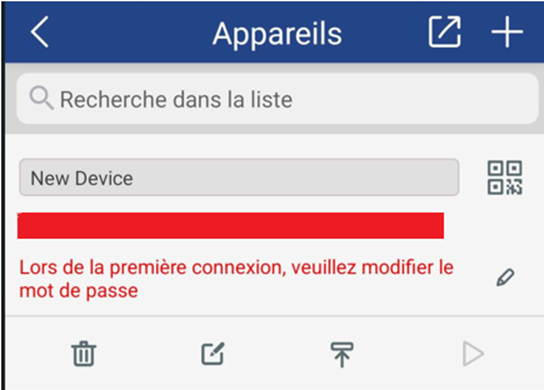
Tap the pencil-shaped icon next to the message: you will be taken to the password change page.
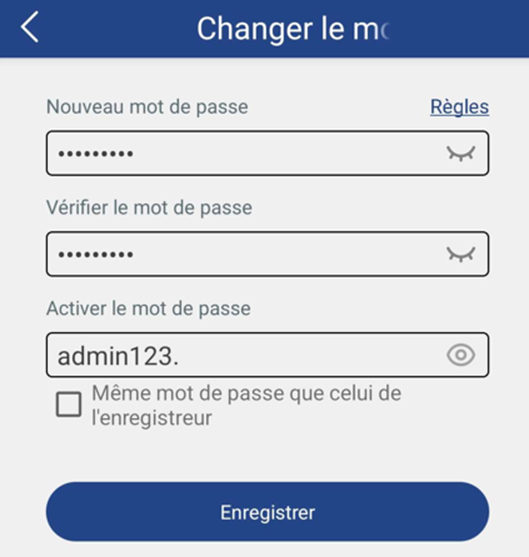
The "New password" and "Verify password" fields correspond to the password used to log in to the recorder.
The "Enable password" field corresponds to the password applied to cameras already added to the device.
Tip: if possible, leave the cameras’ password at the default value (admin123.), because if forgotten you would need to reset each camera individually.
Also be sure to follow password security rules when creating them.
Once the password is added, the recorder should appear as connected on your phone.
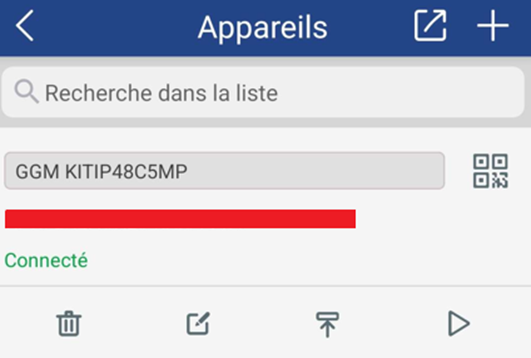
Recommended configuration
After adding the device to your app, we recommend two settings to ensure its proper operation. To configure them, go to "Remote settings".
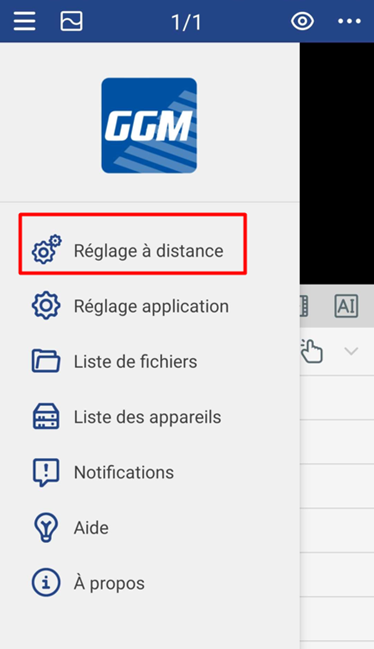
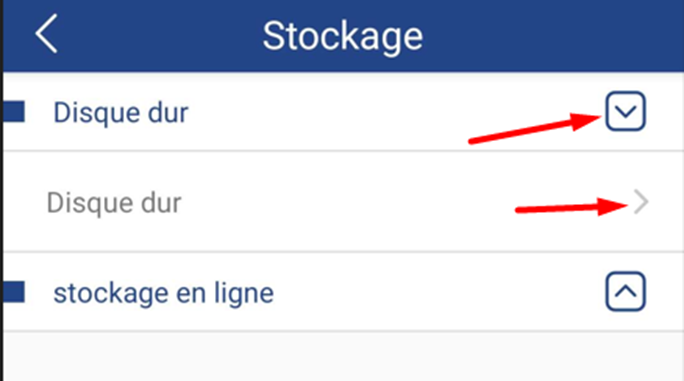
First, we will format the hard drive to ensure all the space is properly allocated for recording. To do this, go to the "Storage" tab.
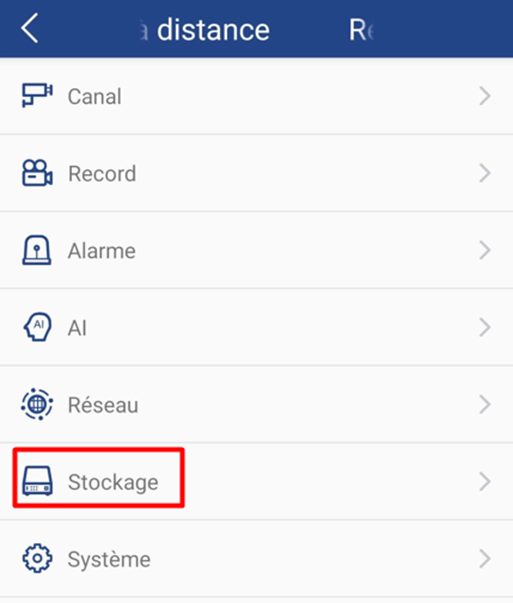
Then select "Hard drive".
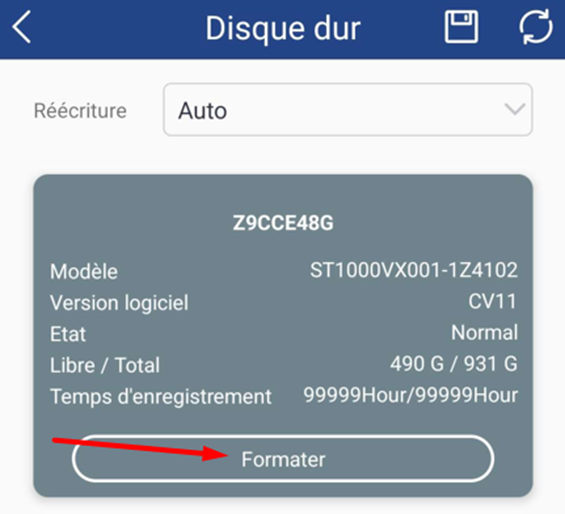
Then click "Format" and proceed to perform a full format of the hard drive.
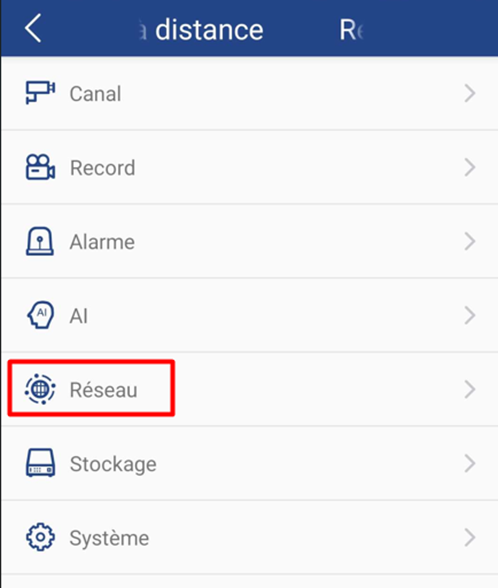
Once the disc is formatted, go back to Remote Settings and then select "Network".
Then select the "General" tab.
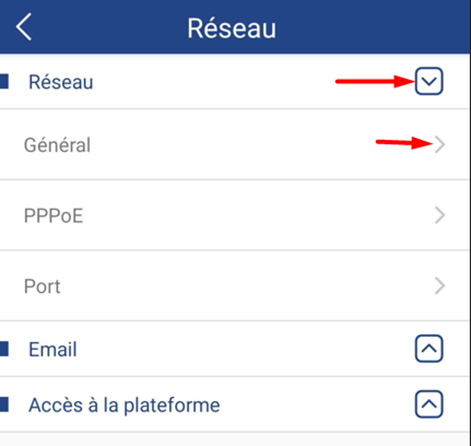
And finally, check that DHCP is enabled.
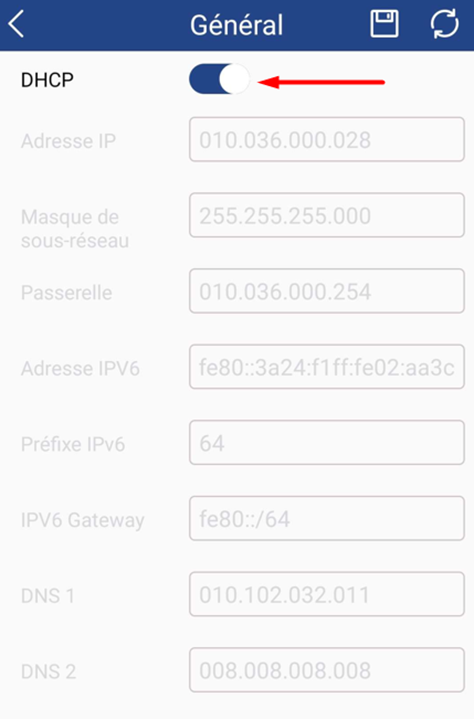
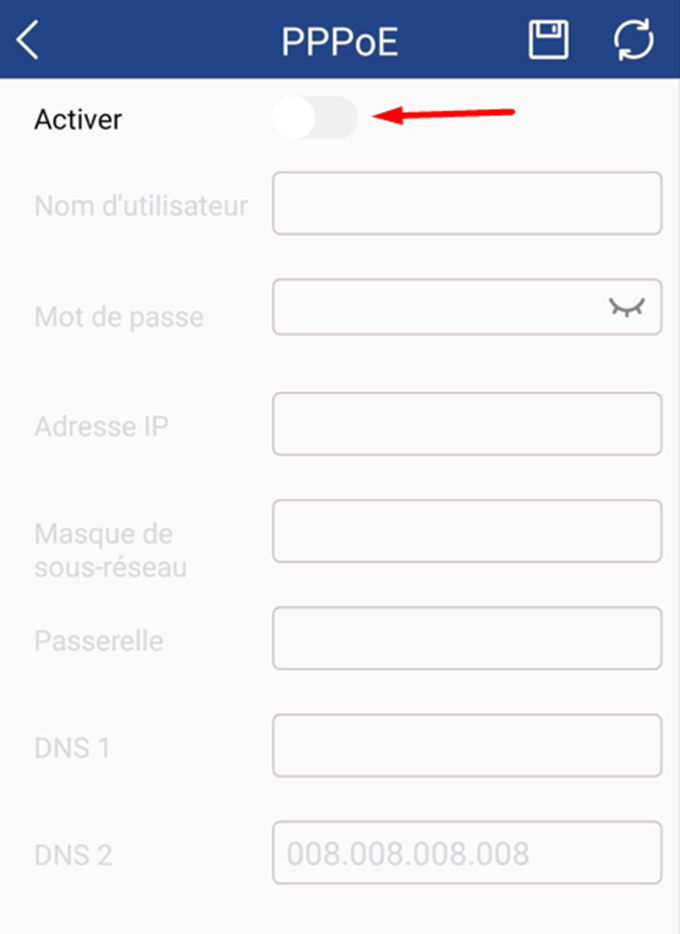
If it is disabled, go back and check that the PPPoE settings are disabled.
----------------------------------------------------
* Depending on the model and firmware version used :
GGM KITIP24C5MP
GGM KITIP24CD5MP
GGM KITIP48C5MP
GGM KITIP48CD5MP
GGM KITIP48C4MPA
GGM KITIP48CD4MPA
GGM KITIP48CDM5MP
GGM KITIP816C5MP
GGM KITIP816CDM5MP
GGM NVRL0104
GGM NVRL0104P
GGM NVRL0108P
GGM NVR0108PA
GGM NVR0208P
GGM NVR020808P
GGM NVR0216P
GGM NVR021608P
GGM NVR021616P
GGM NVR0232
GGM NVR023216P
GGM NVR0416
GGM NVR0432
GGM NVR043216P
GGM NVR0816
GGM NVR081616P
GGM NVR083216P
GGM NVR0832
GGM NVR16
GGM NVR32
GGM NVRE0104P
GGM NVRE0108P
Was this article helpful?
That’s Great!
Thank you for your feedback
Sorry! We couldn't be helpful
Thank you for your feedback
Feedback sent
We appreciate your effort and will try to fix the article