Using the GGM TESTCAMIPEVO video Tester to Display a GIGAMEDIA IP Camera
Example: GGM IPCLB5F25
Prerequisites: Have the camera credentials (IP, login, password).
For our example:
- The camera is in DHCP
- Identifier: admin
- Password: admin123.
- The tester acts as a DHCP server
1. Connecting the camera
- Plug the camera directly into the PoE port on the tester. → The tester powers the camera and establishes the network link.
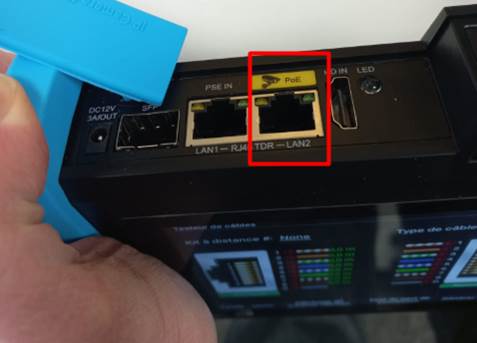
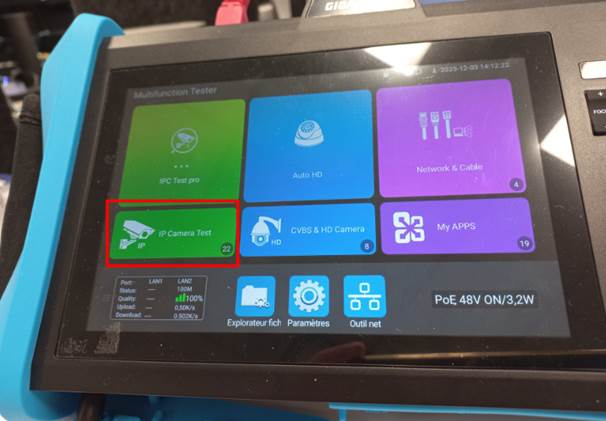
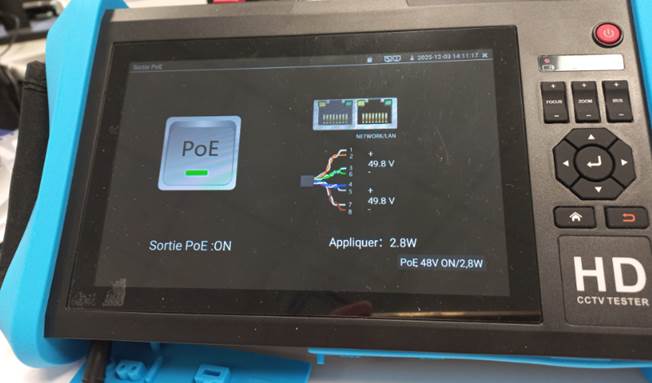
- Enable the POE Output of the tester:
IP Camera Test menu then enable POE Output
2. Camera Detection
- On the tester screen, launch the IPC Test Pro function. → This automatically detects cameras on the network.
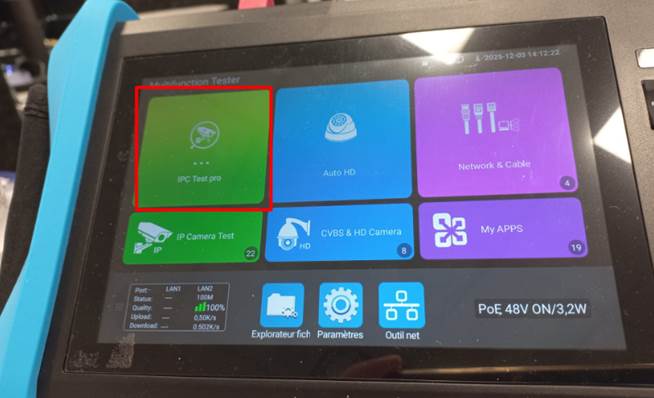
- Make a note of the assigned IP address and specify the camera identifiers in the Connection field
- Select the camera's IP address again
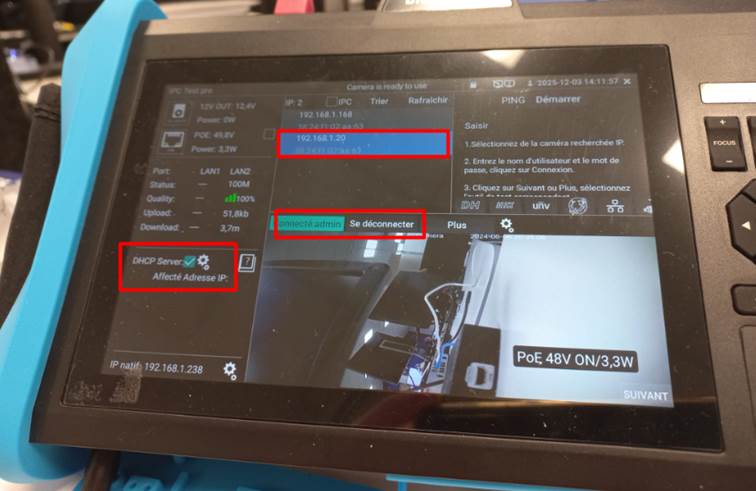
The video stream is displayed directly on the tester's LCD screen.
Was this article helpful?
That’s Great!
Thank you for your feedback
Sorry! We couldn't be helpful
Thank you for your feedback
Feedback sent
We appreciate your effort and will try to fix the article