[New 2026 Range] Adding cameras via a PoE switch on the recorder
Valid for the following ranges :
- Essential GGM NVI Range
- Standard GGM NVS Range
- Advanced GGM NVA Range
- Pro GGM NVP Range
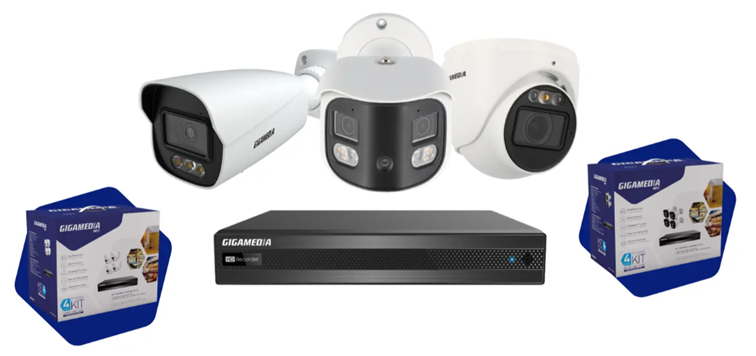
This article applies only to certain references *
In this example, 2 cameras are connected directly to the recorder and 2 additional cameras are connected via a PoE switch connected to the PoE port n°4 of the recorder:
NVR PoE 4 ports
|── Port 1 → Camera 1
|── Port 2 → Camera 2
|── Port 4 → Switch PoE (port Uplink/LAN)
|── Camera 3
|── Camera 4
For POE recorders, the camera network is a network isolated from the recorder network.
EXAMPLE:
- NVR LAN: 192.168.1.x
- Internal PoE network: 10.151.151.x
In this case, the switch connected to a PoE port will be dedicated to adding cameras and your 2 cameras will have to use, beforehand, static IP addresses specific to the internal network: 10.151.151.200 and 10.151.151.201 for example.
Use the GGM IP DISCOVER utility to change the IP addresses of the 2 cameras:
[New 2026 range] - GGM IP DISCOVER and WEB PAGE
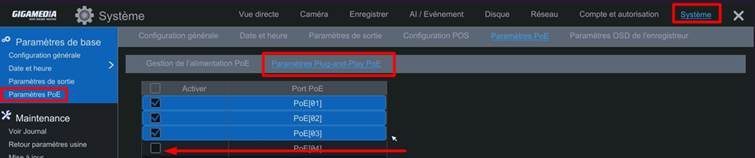
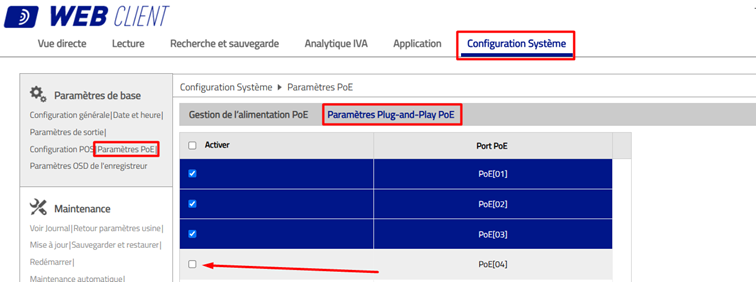
STEP 1 : Disable Port 4 Plug and Play POE Setting
Configuration/System/POE Settings menu and then the PoE Plug and Play Settings tab
GUI side:
On the WEB interface side :
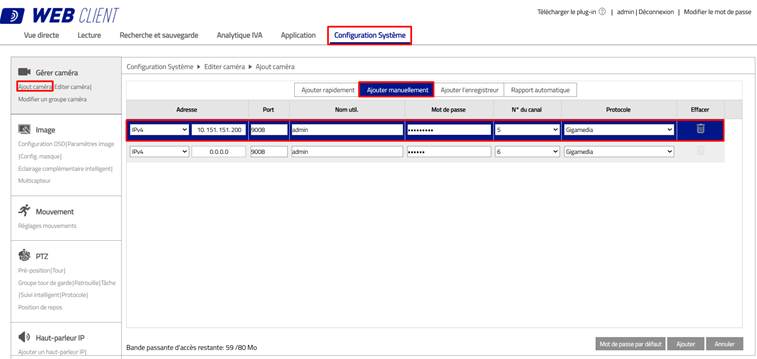
STEP 2: Manually add the 2 cameras to the NVR
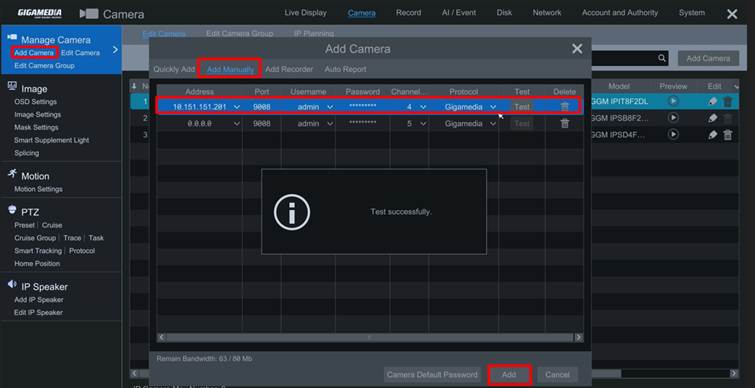
Menu Setup / Camera / Add camera then the Add Manual tab
Indicate the camera information:
- IP address : 10.151.151.200 (example)
- Port : 9008 (default)
- Username : admin
- Password : Camera password.
GUI side:
On the WEB interface side :
* Valid for the references below :
- GGM NVA321604MR
- GGM NVA161602R
- GGM NVS040401D
- GGM NVI080801D
- GGM NVI040401D
Was this article helpful?
That’s Great!
Thank you for your feedback
Sorry! We couldn't be helpful
Thank you for your feedback
Feedback sent
We appreciate your effort and will try to fix the article