Valid for the current range of GIGAMEDIA IP recorders *
Software to download VMS Pro :
Release note 2023 :
Before upgrading, please make sure that you know your ID/password for your equipment, upgrading will erase your data.
- Stability improvements and minor bug fixes.
- Import/Export configuration file
- Personalization of view groups (caution : you must be administrator of your workstation to save personalized views)
Quick Guide :
Language change
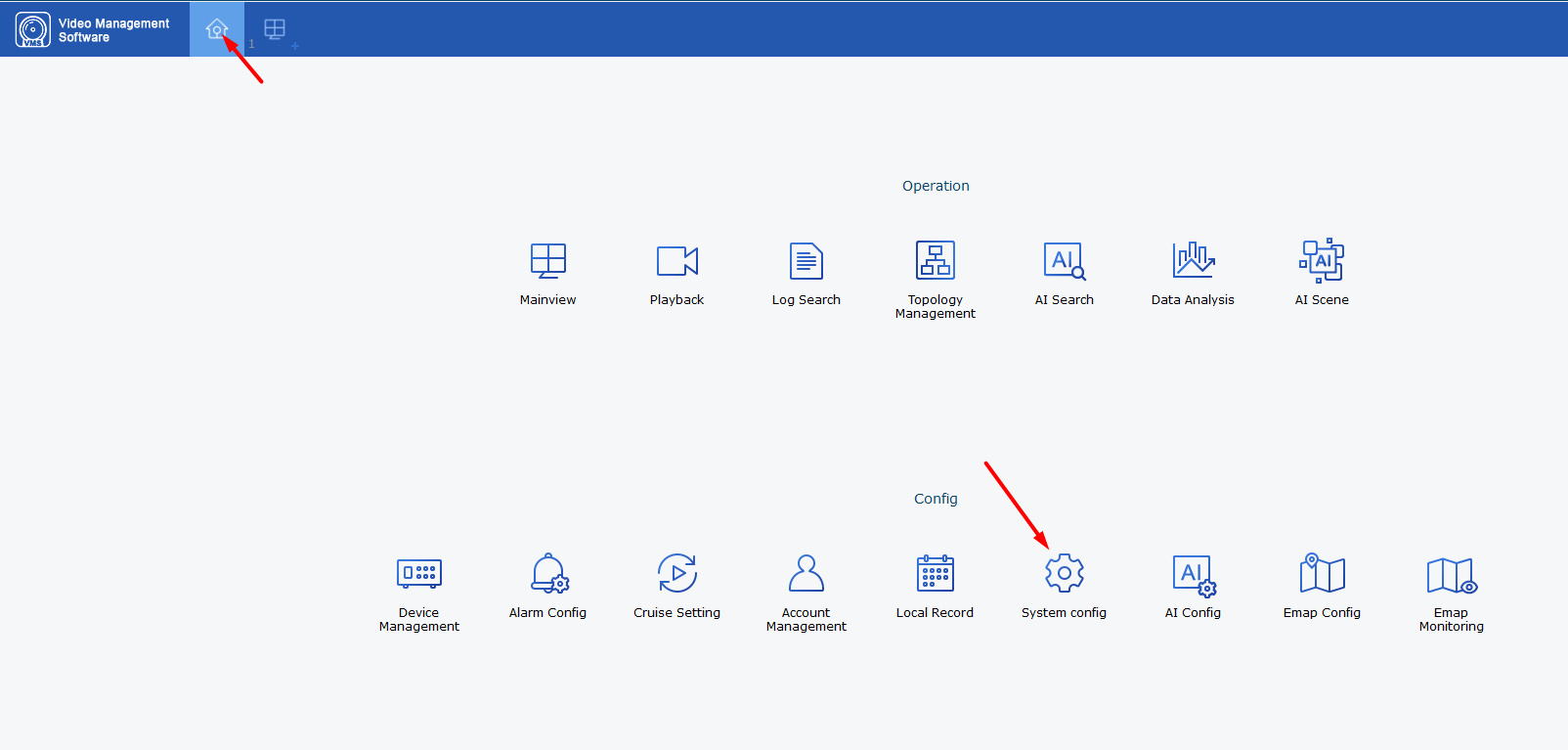
To change the language, first click on "Home Page" (the house icon at the top left), then select "System Config."
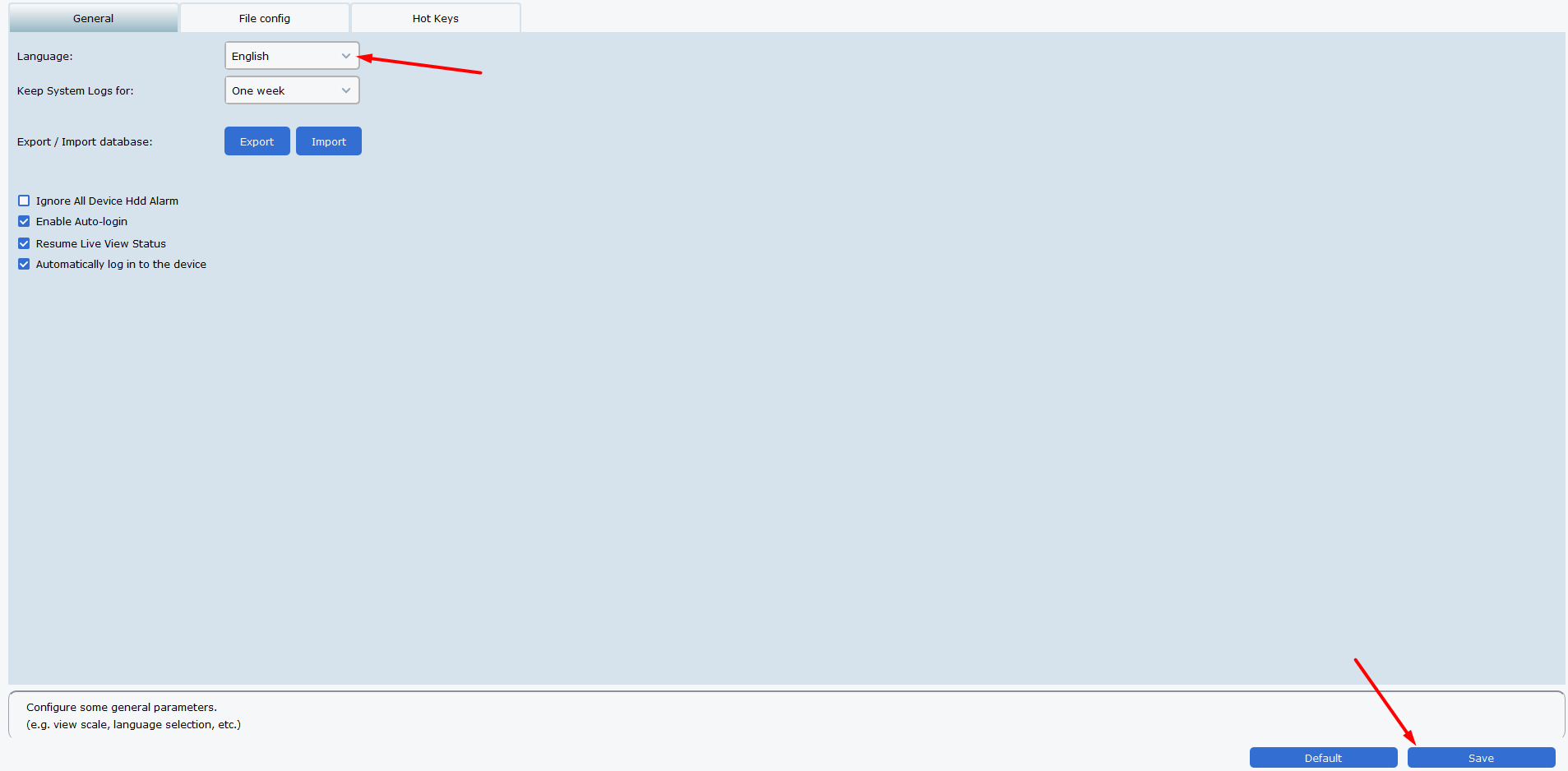
Once on the configuration page, you can select your desired language by clicking the small arrow next to "English." After choosing your language, save the changes by clicking "Save," then restart VMS PRO to apply the new language setting.
Start – Add a recorder & Playback

Add a recorder on VMS Pro VMS pro :
You must first go to Device Management

Then, you have 2 options to be able to add your Device :
Option 1 : auto add
First, by clicking on the small + Symbol (  )
)

This will open a tab for you :

Device Name is the name you want to display on the software.
You can choose the IP Type or P2P ID :
- For the IP address, you must be on the same netwwork as the recorder and you can find this address via the Device Config Tools Utility on computer or directly on the recorder through [i] as infirmatio, on Ntework Settings
- For the P2P ID, you will fond it either on the recorder below the QR Code named ID or on the GUI (Graphical User Interface) on the recorder through [i] as Information.
HTTP Port corresponds to media Port (9000)
Username and password are the one you use to unlock your device (default is admin)
Option 2 : auto add
The second option is to go through the automatic Search Tab

You should then press the search button which will display the devices on the network.

Once the devices appear you can select them with the checkbox all right and then you can add them via the "add" button

By pressing the button a small tab asking for the identifier should appear (this identifier corresponds to the identifiers used to unlock your device)

Once add the device will be available in the main view

Then you just have to drag and drop (with the recorder or cameras) to be able to have the images of the cameras.
Remote Replay
To access the review you must open the "remote playback" page in the main menu

Once opened you can select the cameras, the date (the days with a recording have a small orange triangle) and the type of recording, once this information is selected you will have to click on the "search" button

Once the search is done, all you have to do is click on the bar at the bottom right to choose the time you want to watch
----------------------------------------------------
* Depending on the model and firmware version used :
GGM KITIP24C5MP
GGM KITIP24CD5MP
GGM KITIP48C5MP
GGM KITIP48CD5MP
GGM KITIP48C4MPA
GGM KITIP48CD4MPA
GGM KITIP48CDM5MP
GGM KITIP816C5MP
GGM KITIP816CDM5MP
GGM NVRL0104
GGM NVRL0104P
GGM NVRL0108P
GGM NVR0108PA
GGM NVR0208P
GGM NVR020808P
GGM NVR0216P
GGM NVR021608P
GGM NVR021616P
GGM NVR0232
GGM NVR023216P
GGM NVR0416
GGM NVR0432
GGM NVR043216P
GGM NVR0816
GGM NVR081616P
GGM NVR083216P
GGM NVR0832
GGM NVR16
GGM NVR32
GGM NVRE0104P
GGM NVRE0108P
Was this article helpful?
That’s Great!
Thank you for your feedback
Sorry! We couldn't be helpful
Thank you for your feedback
Feedback sent
We appreciate your effort and will try to fix the article